
This guide provides instructions for configuring ELM327 USB, WiFi, and Bluetooth adapter software on Windows operating systems, including Windows XP, 7, 8, and 10.
Disclaimer: This guide has not been tested on all ELM327 adapter variants. Users assume all responsibility for following these steps.
Comprehensive Windows Setup Guides
This article contains separate installation tutorials for each connection type:
- Guide for Installing ELM327 USB on Windows
- Guide for Installing ELM327 WiFi on Windows
- Guide for Installing ELM327 Bluetooth on Windows
Installing ELM327 USB Adapters on Windows
Step 1: Download and Install Recommended Driver Packages
Important: Do not connect the cable to your computer until instructed to do so.
Procedure for Windows XP, Vista, and Windows 7
If you own an authentic ELM327 v2.1 cable (as shown below), you typically only need to install Driver Pack 3. After installation, proceed directly to Step 2 for verification.
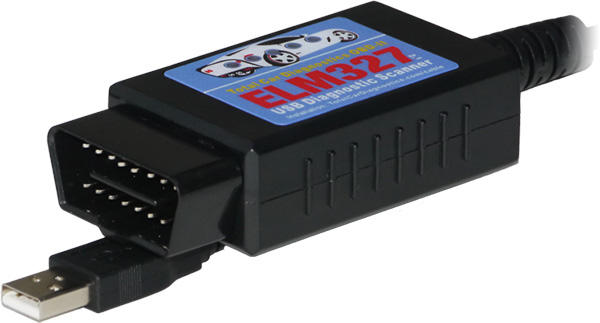
For other ELM327 cables (clones, eBay purchases, or from various manufacturers), install all driver packs listed below to ensure broad chipset compatibility:
- Driver Pack 1:
- For 64-bit Windows: Run CP210xVCPInstaller_x64
- For 32-bit Windows: Run CP210xVCPInstaller_x86
- Driver Pack 2
- Driver Pack 3
- Driver Pack 4
Once complete, move to Step 2 to verify the installation.
Procedure for Windows 8 and Windows 10
For the genuine ELM327 cable pictured above, installing Driver Pack 3 is usually sufficient before testing in Step 2.
For other adapter models, install the following driver packs:
- Driver Pack 1 (Follow the 64-bit/32-bit instructions above)
- Driver Pack 2
- Driver Pack 3
- Driver Pack 4
- Driver Pack 5 (Critical for Windows 8/10)
Installing Driver Pack 5:
- Move the unextracted driver folder to your Desktop to ensure proper installation options appear.
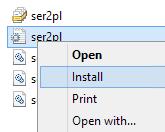
- Right-click the "ser2pl" file (identified by a small gear icon) and select "Install".
- Connect your ELM327 USB cable to the computer.
- Open Device Manager (Control Panel > System > Device Manager > Ports (COM & LPT)). A yellow alert may appear next to "Prolific".

- Right-click the device > Update Driver Software > "Browse my computer for driver software".
- Select "Let me pick from a list of device drivers on my computer".
- Uncheck "Show compatible hardware".

- Choose Prolific driver version 3.3.2.102 and proceed with installation.
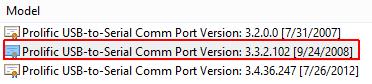
- Once installed, the yellow warning should disappear.
Proceed to Step 2 for verification.
Step 2: Verify ELM327 USB Cable Installation
You may now connect your ELM327 USB cable to any available port.
- Open Device Manager:
- Windows Vista/7/8/10: Control Panel > System > Device Manager
- Windows XP: Control Panel > System > Hardware tab > Device Manager
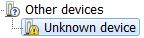
- Expand "Other Devices" and "Ports (COM & LPT)". Look for any of these devices without a yellow warning symbol:
- FT232R USB UART
- Prolific USB-to-Serial...
- USB Serial Port
- USB2.0-Serial
- Silicon Labs CP210x USB to UART Bridge
If no warnings are present, your adapter is ready for diagnostics. If a yellow mark appears:
- Right-click the device > Uninstall.
- Disconnect the cable and restart your PC.
- Download and extract Driver Pack 6.
- Run "InstallUSB" and reconnect the cable.
- If the warning persists, manually update the driver by browsing to the Driver Pack 6 folder during the update process, ensuring "Include subfolders" is checked.
- If a red security warning appears, select "Install this driver software anyway".
Connecting to Your Vehicle for Diagnostics
- Install your preferred OBD2 diagnostic software (do not launch it yet).
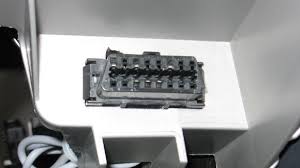
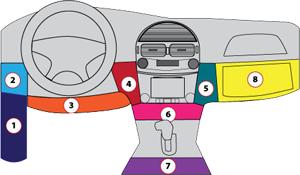
- Connect the ELM327 USB adapter to your computer and your vehicle's OBD2 port (typically located under the dashboard near the steering column).
- Turn the ignition key to the "ON" position (dashboard lights illuminated, engine off).
- Launch your diagnostic software and click "Connect". The software should automatically establish a connection with your vehicle's ECU.
Installing ELM327 WiFi Adapters on Windows
Follow these steps to connect an ELM327 WiFi scanner to Windows.
For Windows Vista, 7, 8, and 10
- Plug the ELM327 WiFi adapter into your vehicle's OBD2 port.
- Turn the ignition to the "ON" position.
- From your Windows WiFi settings, connect to the network broadcast by the adapter (common SSIDs include: WIFI ELM327, WiFiOBD, OBDDevice, V-Link). The network may take up to 30 seconds to appear.
- Use the default password: 12345678.
- Launch your OBD2 software.
- Access the software settings and configure the connection type to "WiFi" (it may default to USB or Bluetooth).
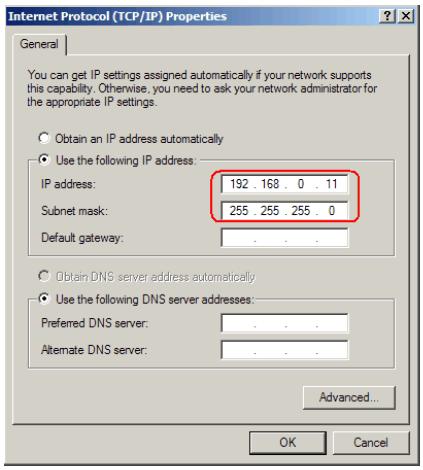
- Set the IP Address to 192.168.0.11 (or 192.168.0.10) and the Port to 35000. Consult your adapter's manual for specific values.
- The software should now connect to your vehicle.
For Windows XP
- Insert the WiFi adapter into the OBD2 port and turn the ignition ON.
- Connect to the adapter's WiFi network using the password 12345678.
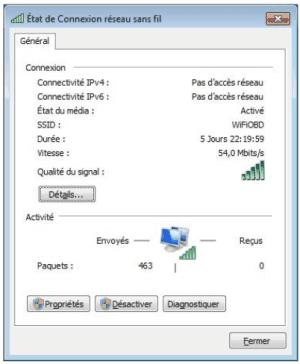
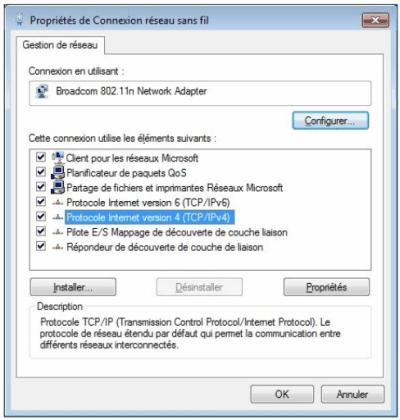
- Right-click the network connection icon and select "Status".
- Click "Properties" to view and configure connection details.
Installing ELM327 Bluetooth Adapters on Windows
This section explains how to pair an ELM327 Bluetooth scanner with Windows systems.
- Connect the Adapter: Plug the Bluetooth scanner into your vehicle's OBD2 port (usually under the dashboard).
- Power the Adapter: Turn the ignition to the "ON" position (engine can be off).
- Pair the Device:
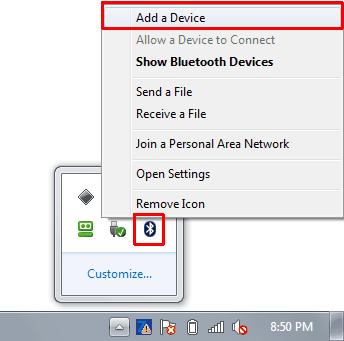
- Right-click the Bluetooth icon in the system tray and select "Add a Device".
- Select your ELM327 device (may appear as OBDII, VLink, Can OBDII, etc.). It can take 15-30 seconds to appear.
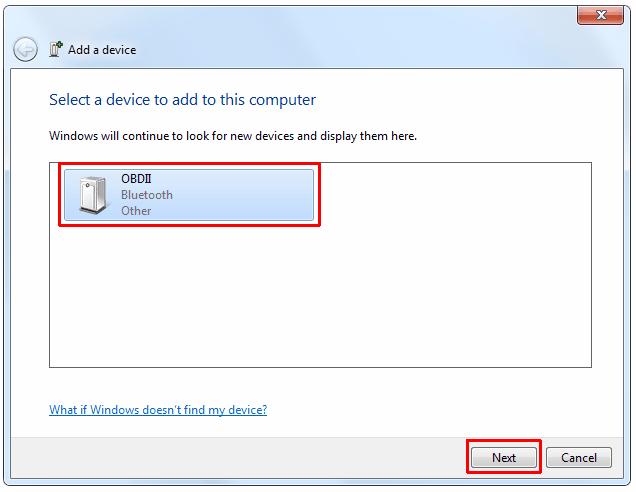
- If the device isn't found, unplug it, restart your computer, and try again. Ensure the adapter's power light is on.
- When prompted for a pairing code, try 1234 or 0000.
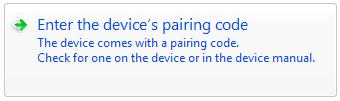
- Windows XP users may need to select "Use the passkey found in the documentation" and enter the code.
- Establish Connection: Launch your OBD2 software and click "Connect". The software should automatically detect the paired Bluetooth adapter and link to your vehicle's ECU.
 WhatsApp:
 Telegram:
 Email: